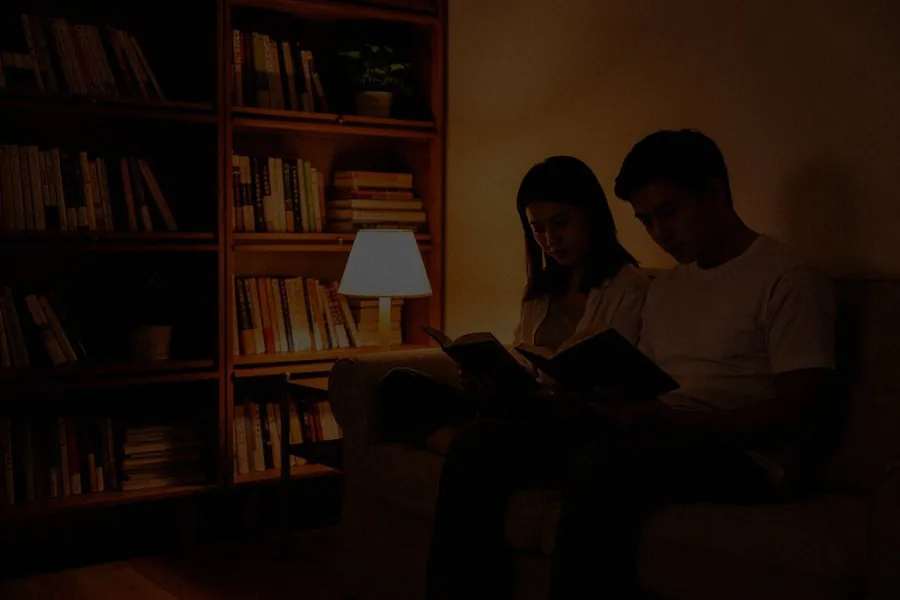
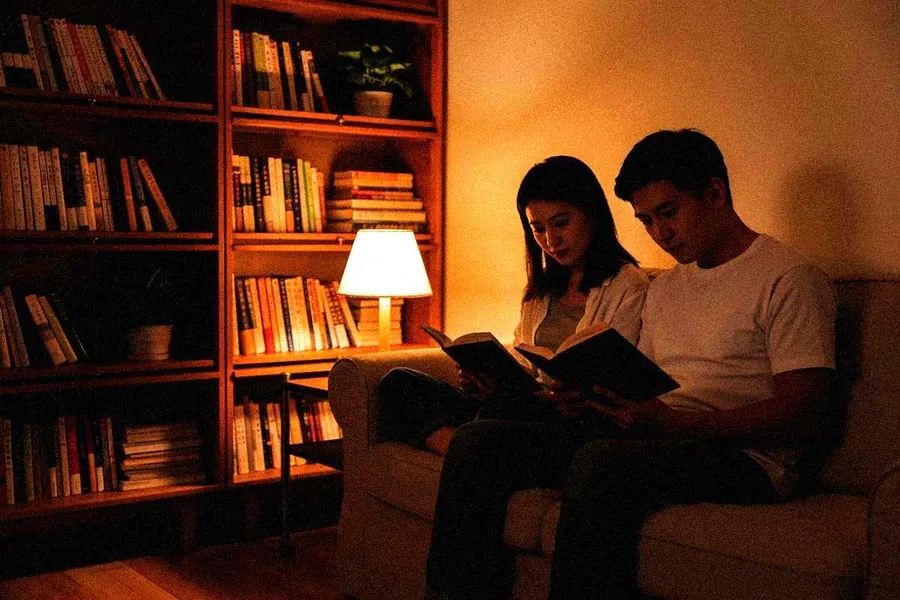
Standard Free
A balanced, natural clean-up of faces. Fast, and a safe first try.
Best for: everyday phone photos with slightly soft faces
Beautify
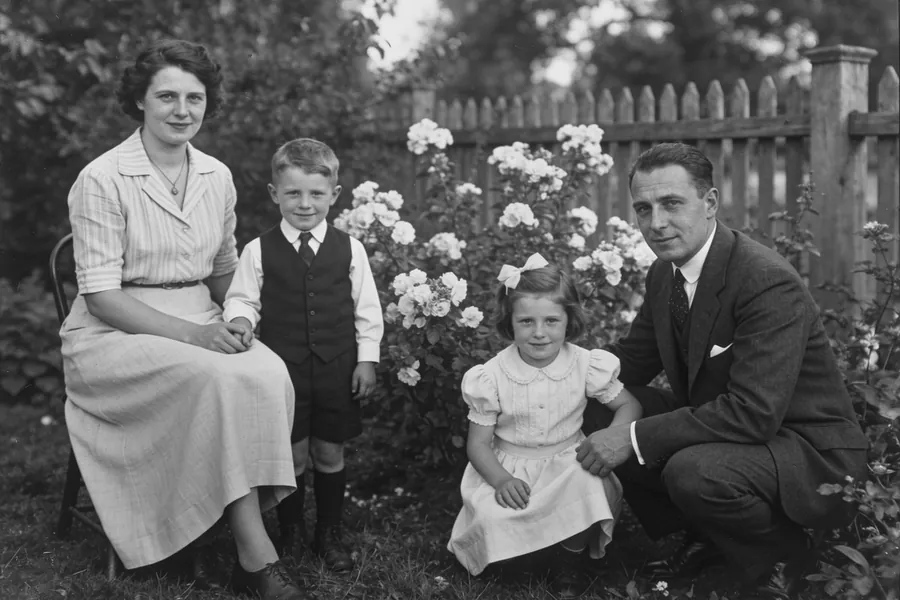
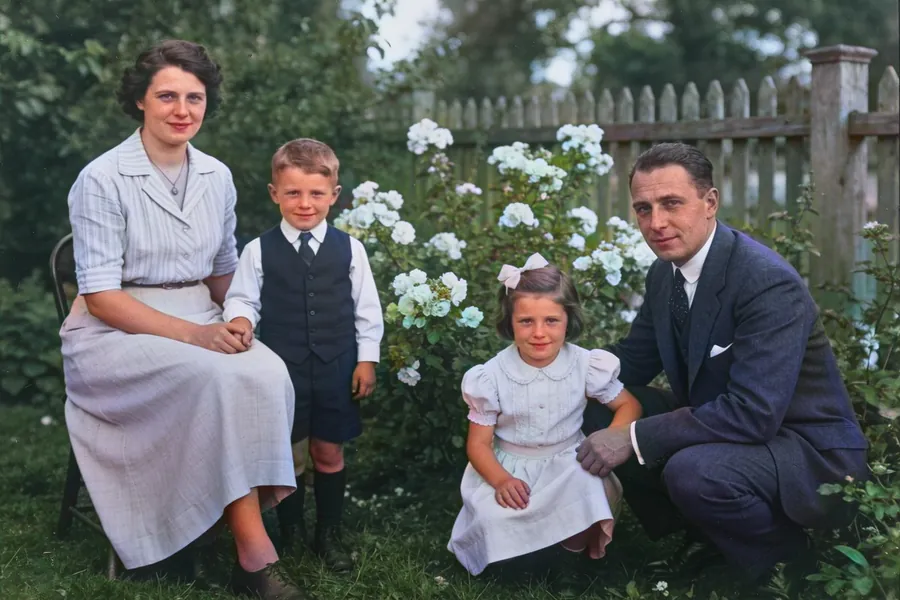
Beautify rebuilds faces that are soft, pixelated or damaged, and keeps the person recognisable. Use it for old portraits, group photos where faces came out small, and pictures from older phones.
Each version runs on the same three photos, so you can compare them side by side.
A balanced, natural clean-up of faces. Fast, and a safe first try.
Best for: everyday phone photos with slightly soft faces
Sharper eyes, skin and hair detail than Standard, still natural.
Best for: portraits that Standard leaves a bit soft
Stronger reconstruction for faces with very little detail left.
Best for: heavily pixelated or tiny faces
The most powerful version. It restores the whole photo and the faces in it, for the most dramatic before and after.
Best for: badly blurred portraits and pets
A different restoration style that keeps more of the original texture. Useful when the other versions look too smooth.
Best for: older faces with wrinkles and character
Free on Android and iPhone, in 22 languages.